


Windows Voice to Text, often referred to as Windows Voice Typing, has evolved into a robust tool for professionals seeking to enhance productivity and streamline their writing processes. This integrated feature within the Windows operating system allows users to convert spoken words into text, offering a hands-free method for drafting documents, emails, and messages.
Summary
Windows Voice Typing, an integral part of the Windows operating system, offers powerful speech-to-text capabilities crucial for professionals in 2026. This guide explores its features, including automatic punctuation and broad language support, and outlines how it can be leveraged for various professional tasks. We will delve into its availability on modern Windows versions and compare its functionalities with more context-aware solutions like Contextli.
Understanding Windows Voice Typing
Windows Voice Typing is Microsoft's native speech-to-text solution, designed to integrate seamlessly into the Windows environment. It enables users to dictate text directly into any application that accepts text input, from word processors to web browsers. This functionality is part of a broader trend towards voice recognition software and voice to text for Windows, aiming to make computing more accessible and efficient.
The core benefit of Windows Voice Typing lies in its ability to translate spoken language into written text, significantly reducing the need for manual typing. This is particularly advantageous for professionals who spend considerable time crafting communications, such as consultants, executives, and content creators. The feature supports various languages, making it a versatile tool for a diverse professional landscape. For those looking for more context-aware solutions, Contextli: Your Guide to Context-Aware Speech-to-Text Software offers tailored options.
The Evolution of Windows Voice to Text in 2026
In 2026, Windows Voice Typing has matured considerably, offering features that cater directly to professional demands. A significant enhancement is its automatic punctuation. This capability means that users no longer need to verbally dictate commas, periods, or question marks, which dramatically improves the flow and naturalness of dictation. This automatic punctuation in several languages enhances transcription accuracy, making the tool more reliable for professional use.
Consider a professional writer who uses Windows Voice Typing to draft articles, benefiting from its automatic punctuation and language support. This writer can speak their thoughts freely, knowing that the system will intelligently add the necessary punctuation, leading to cleaner first drafts and reduced editing time. This level of sophistication highlights the progress in voice recognition software for Windows.
Key Features of Windows Voice Typing
Windows Voice Typing comes equipped with several features designed to improve the user experience and transcription quality:
- Automatic Punctuation: As mentioned, this feature automatically inserts punctuation marks, such as periods, commas, and question marks, based on the context and intonation of your speech. In 2026, Windows Voice Typing offers automatic punctuation in several languages, enhancing transcription accuracy.
- Broad Language Support: The tool supports multiple languages, allowing professionals to dictate in their preferred language and switch between them as needed. This global reach is vital for international businesses and multilingual professionals.
- System-Wide Integration: Unlike some third-party solutions, Windows Voice Typing is deeply integrated into the operating system. This means it works across virtually all applications, providing a consistent dictation experience.
- Accessibility Options: Beyond productivity, Windows Voice Typing serves as an essential accessibility tool, enabling users with physical limitations to interact with their computer more effectively.
- Availability: Windows Voice Typing is available on Windows 10 version 20H2 and later, as well as Windows 11. This ensures that most modern Windows users have access to this powerful feature.
How to Enable and Use Windows Voice Typing
Activating and using Windows Voice Typing is straightforward, making it accessible even for those new to speech-to-text technology.
Enabling Voice Typing
To enable Windows Voice Typing:
1. Press Windows key + H: This keyboard shortcut activates the voice typing panel.
2. Initial Setup (if necessary): The first time you use it, Windows might prompt you to confirm language settings or download necessary language packs.
3. Microphone Check: Ensure your microphone is properly connected and configured. Windows will usually detect and use your default input device.
Using Voice Typing Effectively
Once enabled, a small dictation toolbar will appear on your screen.
* Start Dictating: Click the microphone icon or press Windows key + H again to start dictating. Speak clearly and at a natural pace.
* Pause/Resume: Click the microphone icon again to pause dictation, and click it once more to resume.
* Correction: If an error occurs, you can manually type corrections or use voice commands to edit. For example, saying "delete that" can remove the last dictated phrase.
* Punctuation Commands: While automatic punctuation is a significant improvement, you can still verbally dictate specific punctuation marks if needed (e.g., "comma," "period," "new paragraph").
A student utilizes Windows Voice Typing on a Windows 11 device to transcribe lecture notes, taking advantage of the feature's availability on the latest operating system. This illustrates how accessible and beneficial the tool is for everyday tasks.
Advantages for Professionals
For professionals, the benefits of incorporating Windows Voice Typing into their workflow are numerous:
- Increased Efficiency: Dictating is often faster than typing, especially for those who are not proficient typists, boosting overall productivity.
- Reduced Physical Strain: Minimizing typing can alleviate issues like carpal tunnel syndrome and repetitive strain injuries, promoting better ergonomics.
- Multitasking Capability: Professionals can dictate while performing other tasks that don't require their hands, such as reviewing documents or looking at a screen.
- Idea Generation: Speaking freely can help in brainstorming and articulating thoughts more fluidly than typing, which can sometimes interrupt the flow of ideas.
- Accessibility: For professionals with disabilities, Windows speech recognition provides an indispensable tool for accessing and interacting with their computer.
Limitations of Standard Windows Voice Typing
While powerful, the standard Windows Voice Typing tool has certain limitations, especially when compared to specialized speech-to-text software like Contextli. The primary limitation is its lack of context-awareness.
Standard dictation tools, including Windows Voice Typing, treat all spoken input uniformly. This means whether you are drafting a formal email, a casual Slack message, or bullet-point notes, the output will be a straightforward transcription of your words. This often necessitates significant manual editing to adjust the tone, structure, and formatting to suit the specific communication channel. This creates friction, extra editing, and cognitive load for professionals who frequently switch between different communication styles.
For instance, if you dictate a message for a professional email and then immediately dictate a message for an internal team chat, Windows Voice Typing will produce similar output for both, requiring you to manually refine each for its respective context. This is where specialized tools offer a significant advantage.
Comparing Windows Voice Typing with Context-Aware Solutions
The landscape of voice to text computer software is evolving, with context-aware solutions emerging to address the nuanced needs of professionals. Here's a comparison:
| Feature | Windows Voice Typing | Contextli |
|---|---|---|
| Core Functionality | General speech-to-text transcription | Context-aware speech-to-text with adaptive output |
| Automatic Punctuation | Yes, in several languages | Yes, integrated with context modes |
| Context Awareness | Limited - produces raw transcription | High - adapts tone, structure, and formatting based on "Modes" |
| Output Quality | Clean transcription, requires manual refinement | Polished, ready-to-send text for specific contexts |
| Ease of Use | Simple activation (Windows key + H) | Desktop application with intuitive mode selection |
| Editing Required | Often significant for tone/structure adjustments | Minimal, as output is contextually appropriate |
| Target User | General users, basic dictation needs | Professionals, heavy email/messaging users, knowledge workers |
| Key Differentiator | System-wide integration | Appropriateness and clarity of output for specific contexts |
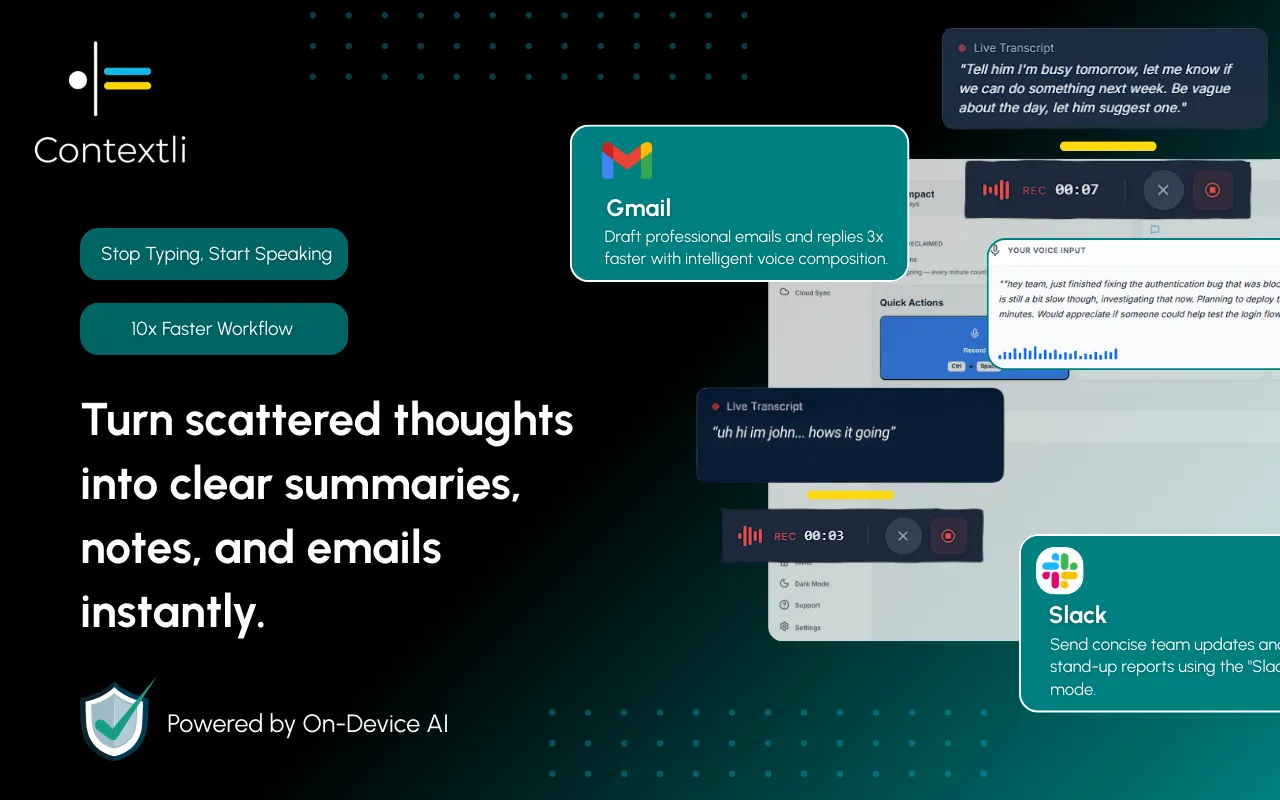
Contextli introduces "Modes" - context-aware processing profiles that automatically adapt your speech to the right output format. For example:
* Email Mode: Generates professional, neutral-toned text with proper structure.
* Messaging Mode: Produces conversational and concise output suitable for platforms like Slack or WhatsApp.
* Notes Mode: Converts speech into organized bullet points.
* LinkedIn Mode: Crafts professional-casual posts for social media.
* Marketing Copy Mode: Focuses on benefit-driven, persuasive writing.
* General Dictation: Provides clean transcription while preserving meaning.
This distinction is crucial for professionals who value efficiency without sacrificing professionalism. While Windows Voice Typing provides a solid foundation for voice typing, solutions like Contextli address the cognitive load associated with manually adjusting content for different platforms.
Integrating Windows Voice Typing into Your Professional Workflow
Despite its limitations, Windows Voice Typing can be a valuable component of a professional's toolkit, especially when combined with other strategies.
For Drafting and Brainstorming
Use Windows Voice Typing for initial drafts of emails, reports, or articles. Its quick transcription allows you to get ideas down rapidly without the interruption of typing. This is particularly useful for content creators and consultants.
For Quick Communications
For internal messages or quick responses where formal tone isn't paramount, Windows Voice Typing can speed up your communication. This applies to platforms where quick, informal exchanges are common.
As an Accessibility Tool
For professionals with physical challenges that make typing difficult, Windows speech recognition is an invaluable resource, enabling full participation in digital workspaces.
Complementing Advanced Tools
Consider using Windows Voice Typing for general dictation, and then leveraging a tool like Contextli for the final polish and contextual adaptation. This hybrid approach allows you to benefit from the system-wide availability of Windows Voice Typing while ensuring your output is always appropriate for its intended audience and platform.
Best Practices for Windows Voice Typing
To maximize the effectiveness of Windows Voice Typing:
- Speak Clearly: Enunciate your words to ensure the software accurately captures your speech.
- Use a High-Quality Microphone: A good microphone can significantly improve transcription accuracy by minimizing background noise.
- Practice Voice Commands: Familiarize yourself with common commands for punctuation and editing to enhance your dictation speed.
- Review and Edit: Always review the transcribed text for accuracy and make any necessary corrections. While automatic punctuation is helpful, it's not always perfect.
- Understand Its Strengths and Weaknesses: Recognize that Windows Voice Typing is a general dictation tool. For highly polished, context-specific output, consider specialized voice to text software.
The Future of Windows Voice to Text
The trajectory of voice recognition software indicates continued advancements in accuracy, language support, and integration. Microsoft is likely to further enhance Windows Voice Typing, potentially incorporating more sophisticated AI models to improve contextual understanding and natural language processing.
We can anticipate improvements in:
* Enhanced Contextual Understanding: Future versions might offer more rudimentary context awareness, reducing some of the manual editing burden.
* Deeper Integration with Microsoft 365: Tighter integration with applications like Word, Outlook, and Teams could provide more tailored dictation experiences within the Microsoft ecosystem.
* Personalization: The ability for the software to learn individual speech patterns and vocabulary could lead to even higher accuracy.
However, the fundamental challenge of adapting speech to diverse communication contexts will likely remain a domain for specialized solutions. The need for a tool that understands the difference between a professional email and a casual chat, and adjusts the output accordingly, will continue to drive innovation in platforms like Deepgram vs Contextli: Choosing the Right Speech-to-Text for Professionals.
Conclusion
Windows Voice to Text, or Windows Voice Typing, is a valuable, built-in tool that offers significant productivity benefits for professionals in 2026. Its automatic punctuation in several languages and system-wide integration make it an accessible and efficient option for general dictation. Available on Windows 10 version 20H2 and later, as well as Windows 11, it serves as a robust entry point into the world of speech-to-text technology.
While it excels at transcribing spoken words into text, professionals who require output that is tailored to specific communication contexts - such as formal emails, concise messages, or structured notes - will find greater value in specialized, context-aware solutions like Contextli. By understanding the strengths and limitations of Windows Voice Typing, professionals can strategically integrate it into their workflows, potentially pairing it with advanced tools to achieve optimal efficiency and ensure their voice becomes the right kind of text for every situation.
FAQ
How do I enable Windows Voice Typing?
You can enable Windows Voice Typing by pressing the Windows key + H simultaneously. This shortcut will bring up the dictation toolbar, allowing you to start speaking to type. Ensure your microphone is properly connected and functioning.
Is Windows Voice Typing available on all Windows versions?
Windows Voice Typing is available on Windows 10 version 20H2 and later, as well as Windows 11. If you have an older version of Windows, you might need to update your operating system to access this feature.
Does Windows Voice Typing support automatic punctuation?
Yes, in 2026, Windows Voice Typing offers automatic punctuation in several languages, enhancing transcription accuracy. This feature automatically inserts periods, commas, and other punctuation marks based on your speech patterns and context.
Can Windows Voice Typing be used for professional communication?
Windows Voice Typing can be used for drafting professional communications, but it provides a raw transcription of your speech. For highly polished, context-specific output that adapts to different communication styles (e.g., formal email vs. casual message), specialized tools like Contextli offer a more tailored solution.
How does Windows Voice Typing compare to other voice recognition software?
Windows Voice Typing is a general-purpose, system-integrated voice recognition tool. It provides solid basic dictation functionality. Other voice to text software, particularly those designed for professionals like Contextli, offer advanced features such as context-aware output modes, which automatically adjust tone, structure, and formatting for different communication platforms.
