

Weekly Reflection TemplateAug 19, 2026
Weekly Review Template: Run Your Review in 15 Minutes
A weekly review template you can run in 15 minutes every Sunday. Six prompts, a scoring table, and a faster way to capture it by voice.
 Junaid Khalid
Email Mode in Contextli takes a few rough sentences and produces a properly addressed, properly closed client email in your voice. Feed it a handful of your past emails as examples, optionally turn on screen-awareness, a
Most professionals send 30 to 50 client emails a day. Each one is short, but each one has the same overhead: read the inbound message, decide on a tone, type the greeting, write the actual content, type the sign-off, proofread. The typing is the only part that scales linearly with how many emails you send. Email Mode in Contextli replaces it with one hotkey and a short dictation.
This guide walks through what Email Mode actually does, how to customize it with examples of your own past writing, the opt-in screen-awareness flow that handles context-rich replies, and how the whole thing fits into a normal client email day. By the end you should know whether it fits your workflow, and how to set it up if it does.
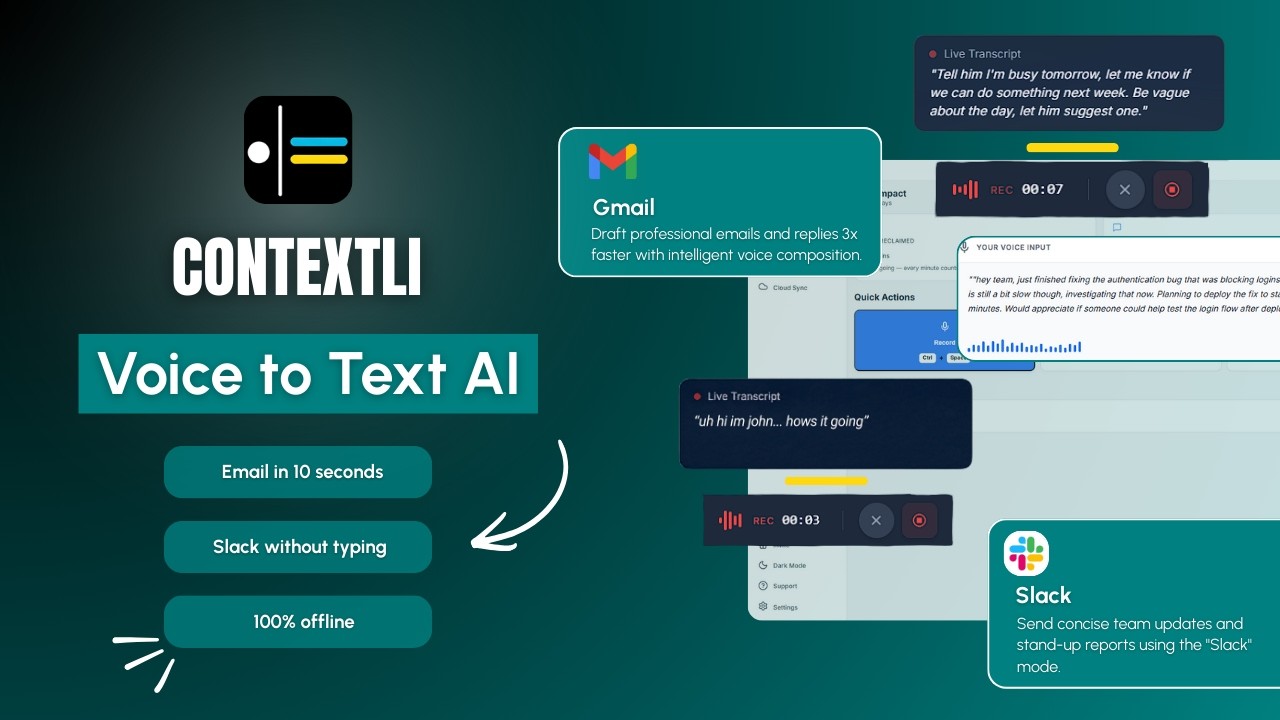
Email Mode is one of Contextli's context-aware Modes. The other Modes (Messaging, Notes, LinkedIn, Marketing Copy, General Dictation) handle different channels with different tone defaults. Email Mode is the highest-frequency channel for most knowledge workers, so it gets the most attention.
When Email Mode is active and you press the hotkey, three things happen. First, your speech is transcribed (locally if you have local models enabled, in the cloud otherwise). Second, the context-aware writing layer reformats the raw transcript into email shape: a greeting if appropriate, full sentences with proper punctuation, paragraph breaks where the topic shifts, and a sign-off in your style. Third, the result types into whatever email window you are focused on, Gmail, Outlook, Apple Mail, Superhuman, HEY, it does not matter because Contextli writes into the focused window at the system level.
You can dictate as rough as you like. "Hey Sarah pushing back the demo to Thursday two pm send a new invite if that works" becomes a properly structured short email, addressed to Sarah, with the time spelled out, asking her to confirm with a new invite. Email Mode handles the cleanup.
Out of the box, Email Mode writes in a neutral, professional voice. That is fine for the first day. The real win is customizing it with your own past writing so every dictated email matches the voice you actually use with clients.
Here is the flow. In Contextli settings, open Email Mode customization. Paste three to five examples of recent emails you have sent to clients. They do not need to be your best emails, just representative. If you tend to open with "Hi Sarah," instead of "Hello Sarah,", paste an example with "Hi Sarah,". If you sign off with "Best, J." instead of "Best regards, Junaid Khalid", paste that too. If you use UK spellings, the examples will carry them.
From that moment on, every dictated email matches the voice in your examples. The sentence length, the formality, the opening, the closing. You can also give specific instructions in the customization panel: "never start an email with the word 'I'," "always use UK spellings," "sign off as J., not Junaid," "default to 'Hi' over 'Dear' unless I name a specific title."
A consultant who feeds Email Mode five past client emails gets a Mode that produces emails in her voice. She does not have to reread every dictation to fix tone. She reads for accuracy and sends. This is what no other dictation tool offers. Wispr Flow, Willow Voice, MacWhisper, Superwhisper, and Apple Dictation all transcribe; none of them adapt per-Mode to a voice you trained with examples.

The customization story is the everyday win. Screen-awareness is the harder feature to talk about because it requires giving Contextli more access. It is off by default and you control it.
If you turn screen-awareness on, Contextli can see what is on your screen when you press the dictation hotkey. The use case that lands the hardest is replying to a client email with multiple questions.
A client emails: "Hey, three quick questions: when can we schedule the next review, are you available the week of June 10, and should we include the design team or just the leads?" You hit the hotkey while reading that email and say "let her know I'm out the 10th but available the 12th and 13th, the design team should come, and book it for an hour." Email Mode, with screen-awareness on, already knows the client's name (from the email it just saw), already knows the three questions, and already knows your own name. The reply comes out properly addressed, with each question answered in order, with a proper sign-off.
The trade is honest. Screen-awareness means Contextli reads the focused window when you dictate. If you do not want that, leave it off. The other Modes (Email Mode without screen-awareness, Messaging Mode, the rest) still work as normal. The feature is most useful for replies where the context is already on screen.
Here is the kind of workflow Email Mode is designed for. A management consultant has 14 client emails to write today. Some are quick acknowledgments. Some are short status updates. Three are longer, with specific recommendations.
She opens her inbox. The first email is from a director asking when she can present the Q3 findings. She hits the Contextli hotkey. "Tell him I can do Tuesday morning or Thursday afternoon, and ask if his team needs the slides early." Six seconds of dictation. Email Mode produces: a "Hi [Director's name]," a one-sentence offer of two time slots, a follow-up question about advance slides, and her sign-off "Best, J." She reads it, makes one small edit, sends. Twenty-five seconds total. Typing it would have taken about 90 seconds.
She works through nine more like that in ten minutes. Three of them she does with screen-awareness on, because the inbound emails were long and she wanted Email Mode to handle each point in order. The other six she does with screen-awareness off, because they were short enough to fully describe in dictation.
For the three longer recommendation emails, she does the first two with dictation and Email Mode, then writes the third by hand because it needs careful phrasing. Email Mode is not a replacement for the emails that need real care. It is a replacement for the 80 percent of emails that are short, repeatable, and high-volume.
A short comparison. Verified against vendor documentation in May 2026.
| Tool | Email dictation works | Per-channel customization | Voice training with examples | Opt-in context awareness | Local model option |
|---|---|---|---|---|---|
| Contextli (Email Mode) | Yes | Yes | Yes | Yes (off by default) | Yes |
| Wispr Flow | Yes (generic) | No | No | Auto screenshots | No |
| Willow Voice | Yes (generic) | No | No | No | No |
| MacWhisper | Transcription only | No | No | No | Yes |
| Apple Dictation | Yes (generic) | No | No | No | Yes |
| ChatGPT voice | Through chat only | No | No | No | No |
The line that matters: Email Mode adapts to one channel (email) with your voice trained on examples. The other tools either transcribe with no adaptation, or apply the same generic tone to every channel.
A practical setup, from a fresh install to a customized Email Mode ready for daily use.
First, install Contextli and pick your hotkey in settings. Most users go with Cmd+Shift+Space on Mac or Ctrl+Shift+Space on Windows. The hotkey works system-wide into the focused window.
Second, open Email Mode customization. Paste three to five emails you have sent to clients in the last few weeks. Mix routine acknowledgments with longer notes so the Mode sees your range.
Third, add explicit instructions if you have hard preferences. Common ones: "always use UK spellings," "sign off as Junaid, not Junaid Khalid," "default greeting is Hi [name],", "never use 'reach out', use 'get in touch'." These instructions are sticky.
Fourth, decide on screen-awareness. If you handle a lot of context-rich client replies, turn it on, with the understanding that the Mode now reads your focused window when you dictate. If you would rather keep that off, leave it off. The Mode still works without it.
Fifth, optional: turn on the privacy stack (local models, BYOK, disable cloud sync) if your work involves sensitive client data. The Contextli privacy guide walks through this in detail.
You are ready to dictate. The first 10 emails are when Email Mode adapts most visibly. By the time you have used it for a week, the output reads as close to your own writing as the examples allow.
A few honest limits.
Email Mode is not a transcription tool for long-form interview recordings. If you need to transcribe a 30-minute conversation, use a tool built for that (Otter, Whisper Transcription, MacWhisper).
Email Mode does not have a Gmail or Outlook API integration. It is a system-level dictation app that types into the focused window. This means it works in any email client you focus on, but it does not access your email history, your contacts, or your inbox state programmatically. Screen-awareness is the only way Email Mode "sees" what you are writing about.
Email Mode is not a tone-shifter that can rewrite an existing email. It writes new emails from your dictation. If you have a long draft you want to revise, use a different tool for that pass, such as a free email rewriter that polishes text you already have.
You can set a default Mode per app in Contextli settings, or switch Modes from the menu bar before pressing the hotkey. Most users default to Email Mode in their email client and Messaging Mode in Slack and WhatsApp.
Not really. Once you have fed it five or so representative examples, the voice stays consistent. If your style changes (new role, different client mix), update the examples. Otherwise leave it.
Three is the floor. Five works well. Past 10 the returns diminish. Mix short and long, formal and casual within your range, so the Mode sees your range rather than one register.
Add an explicit instruction in the customization panel. "Default to a warmer opening." "Use first names not last names." These instructions sit alongside the example-based training and tend to be more reliable for hard preferences.
Yes, if you have local models enabled. Transcription and Email Mode's context-aware writing both run on your machine in local mode. See the Contextli context-aware speech-to-text guide for the full setup.
Yes. With screen-awareness on, the Mode reads the active email thread (subject, sender, the body of the message you are replying to) and uses that context to address each point. The reply is properly addressed and stays on topic.
Describe the context in your dictation. Email Mode produces a structured email from what you say, with or without screen-awareness. It is just faster with screen-awareness when the context is already on screen.
Yes, all of them. Email Mode is system-level dictation. It types into whatever email client window you have focused. There is no per-client setup needed.
Email Mode pairs naturally with the broader Contextli setup. For the context-aware foundation, read the Contextli speech-to-text overview. For native macOS dictation comparisons, see the Mac speech-to-text guide. For privacy-first setups (local models, BYOK, disable cloud sync), the WhatsApp dictation guide covers Messaging Mode for the same workflow on chat. The parent context-aware speech-to-text pillar ties Email Mode to the rest of the Contextli system.
For chat-channel dictation specifically, Messaging Mode covers Slack, WhatsApp, iMessage, and Teams using the same customization-by-example approach Email Mode uses, just tuned for shorter conversational replies.
If you work in a field where documentation is the job, the same customized-Mode approach applies to your notes. See the guides on legal case notes, therapy session notes, and advisor client meeting notes for role-specific setups.
Contextli's free tier includes 100 credits per month with no credit card required, which is enough to set up Email Mode, paste your examples, and run a full day of client email through it. See the features page for the customization details, or jump straight to the download page to install on Mac or Windows.

Junaid Khalid
Founder & CEO
Founder and solopreneur writing about how modern businesses run leaner and faster with AI. I build software that turns everyday work, from capturing thoughts to writing and staying organized, into something effortless, and I share what I learn along the way.
A weekly review template you can run in 15 minutes every Sunday. Six prompts, a scoring table, and a faster way to capture it by voice.
Junaid KhalidA vet visit notes template that captures the diagnosis, dosing, and follow-up before you leave the exam room. Speak it into your notes instead of typing.
Junaid KhalidCounseling progress notes software that writes your notes by voice and keeps client data on your own machine, so counselors finish notes the same day.
Junaid Khalid